













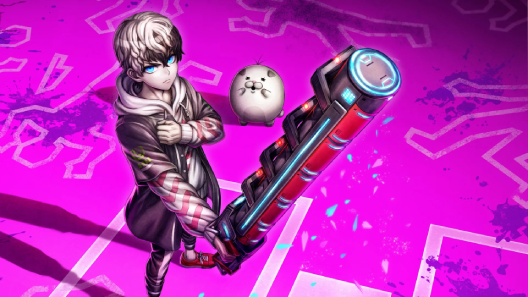

















Silver Palace opened test access distribution and pre-downloads for the “Dichotomy” Beta Test, running 2026/07/23 10:00 – 2026/08/13 10:00 (UTC+8) on PC only. Here’s how to check your access, pre-download the client, and fix the most common launcher errors.
Test Access Verification
Detectives who submitted the recruitment survey can check their status two ways:
- Official website — open the “Check Test Access” page and enter the email address used in the recruitment survey.
- Email notification — a notification is sent to the email address provided in the recruitment survey once access is granted.
Test access distribution is ongoing, so check back if you haven’t heard back yet.
Pre-Download the Game
Detectives with confirmed test access can pre-download the client from a PC web browser. The test supports PC (Windows) only, and your device and drivers are verified before the download starts — devices that don’t meet the requirements won’t be able to participate.
| Component | Minimum | Recommended |
|---|---|---|
| OS | Windows 10 22H2 / Windows 11 21H2 or higher | Same |
| CPU | Intel Core i7-8700 / AMD Ryzen 5 3600 or equivalent | Intel Core i7-12700 / AMD Ryzen 7 5800X or equivalent and above |
| GPU | NVIDIA GeForce GTX 1060 6GB / AMD Radeon RX 580 8GB or equivalent | NVIDIA GeForce RTX 3060 / AMD Radeon RX 6600 XT or equivalent and above |
| VRAM | 6 GB | 8 GB or higher |
| RAM | 12 GB | 16 GB or higher |
| Storage | 65 GB of available SSD space (plus 25 GB extra during extraction) | Same |
Account and Security Notes
- Test eligibility is for personal use only and cannot be transferred, shared, or sold.
- Access is bound to the device used for your first login — logging in from a different device results in an account ban and disqualification from the test.
- Official notification mail only comes from Silver Palace Operations Team at
silverpalace@pre-reg.elementagames.comorsilverpalace@noreply.elementagames.com. Don’t open notifications from other senders. - Check your Spam or Promotions folder if the notification email doesn’t show up in your inbox — delivery can be delayed.
Common Launcher Issues
- “Current path is on a mechanical hard drive (HDD)” — switch the installation path to an SSD for better performance.
- “Device Check Failed” — your device doesn’t meet the test requirements; use the “Copy Device Specs” button in the pop-up and submit it through Customer Service if you have questions about the result.
- “Please log in using the device that was previously used for test eligibility” — your account is bound to a different device; log in from that original device instead.
- “Failed to decompress game” — uninstall Silver Palace from Windows Settings > Apps > Apps & features, then reinstall.
- “Failed to decompress” during an update — end the
SilverPalaceClienttask in Task Manager and retry; restart your PC if the error persists. - Other download issues — in the launcher, go to Game Settings > More Actions > Delete Download Cache.
- Missing or deleted game files — use Game Settings > More Actions > Quick Fix to re-download missing files, or uninstall and reinstall if that doesn’t resolve it.
- Antivirus alerts on launch — allow the launcher/game to run or trust the application in your antivirus software.
For anything else, use the “Customer Support” icon in the launcher, or email service_global@elementagames.com.